
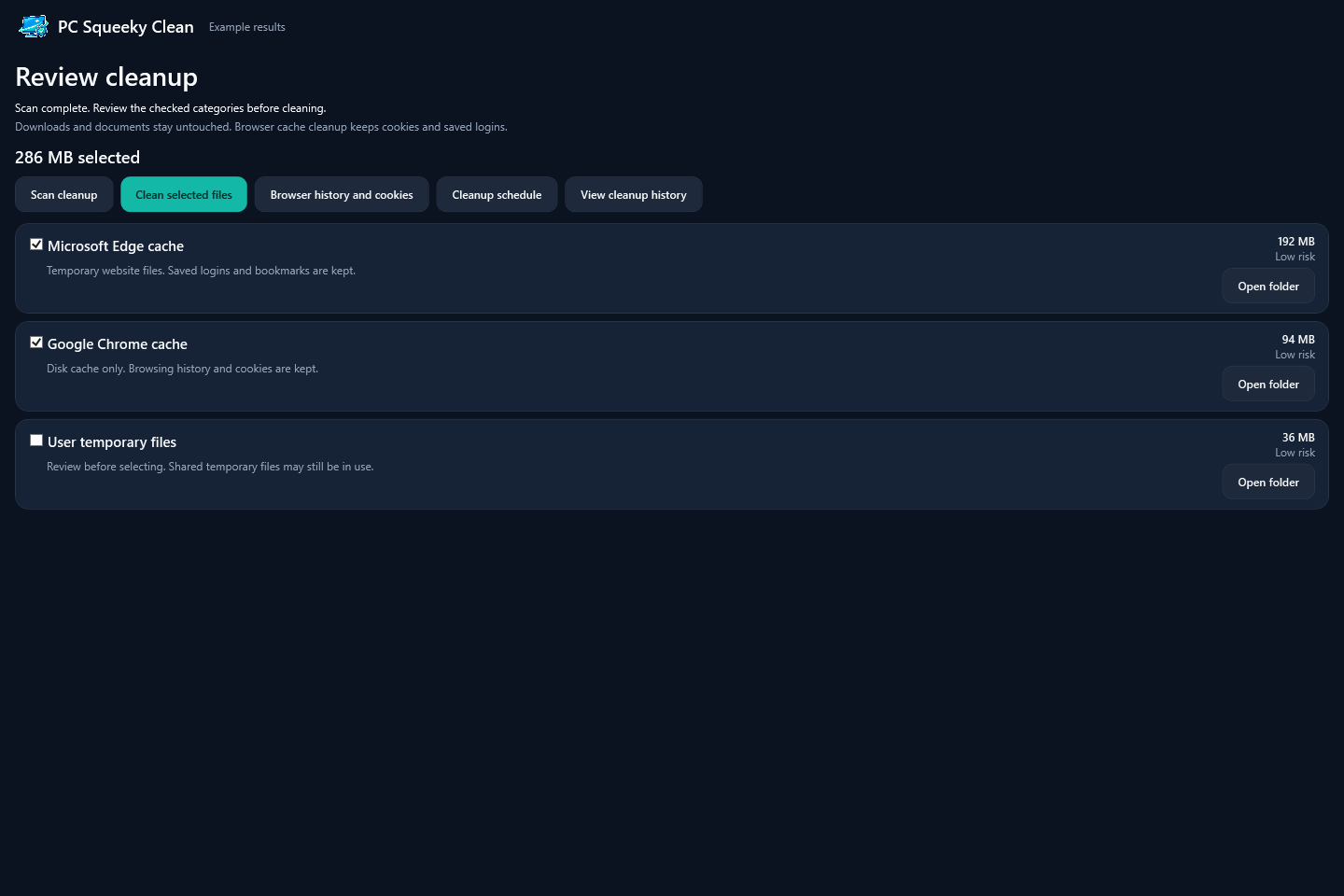
Review before you clean
See how much space each category could free up. Keep the categories you want to clean and uncheck anything you want to keep.
 PC Squeeky Clean
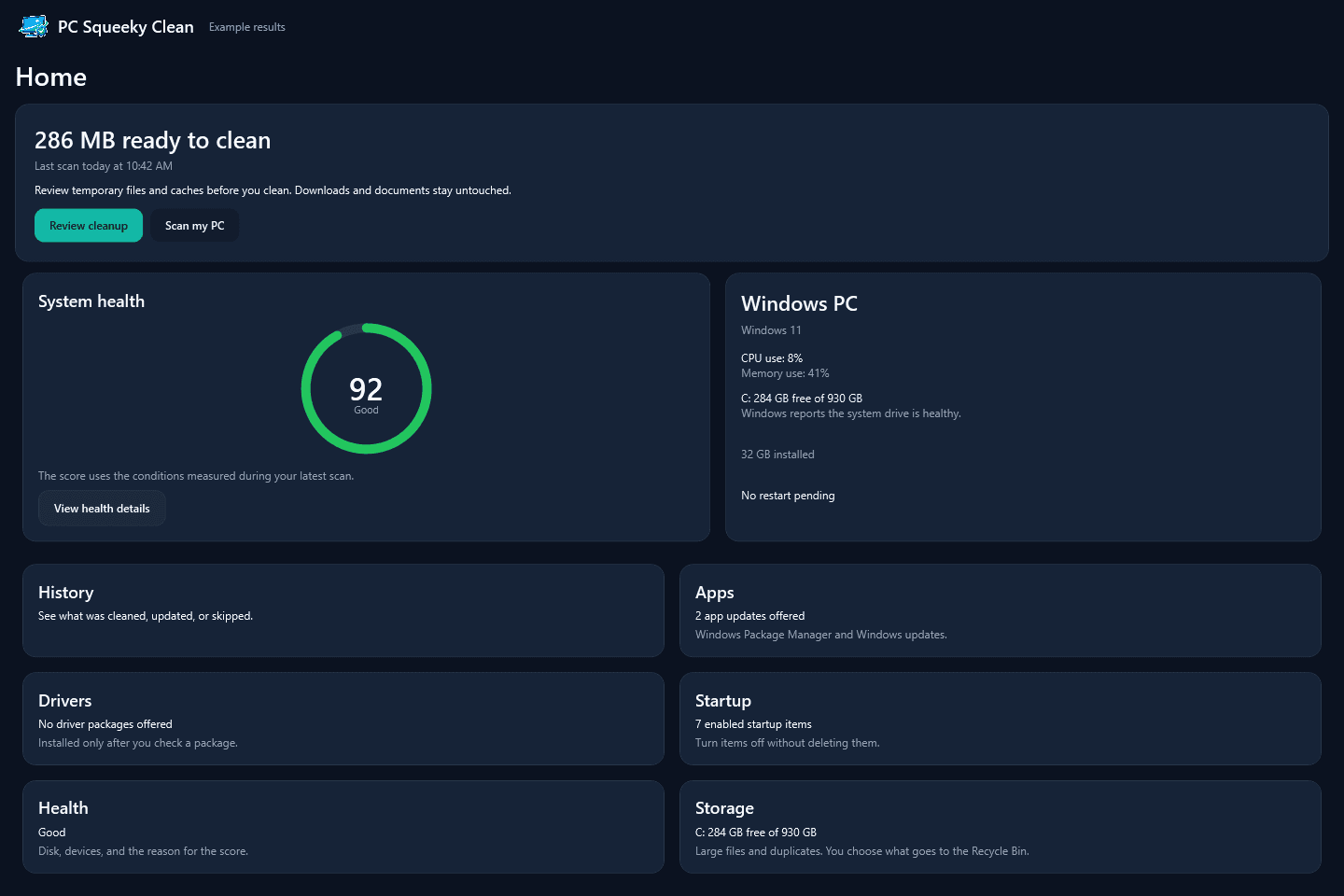
Scan your Windows PC, see what’s taking up space, and choose what to clean. Set up routine maintenance and check the results any time.
For Windows 10 and 11. Public Store release pending.
See how much space each category could free up. Keep the categories you want to clean and uncheck anything you want to keep.
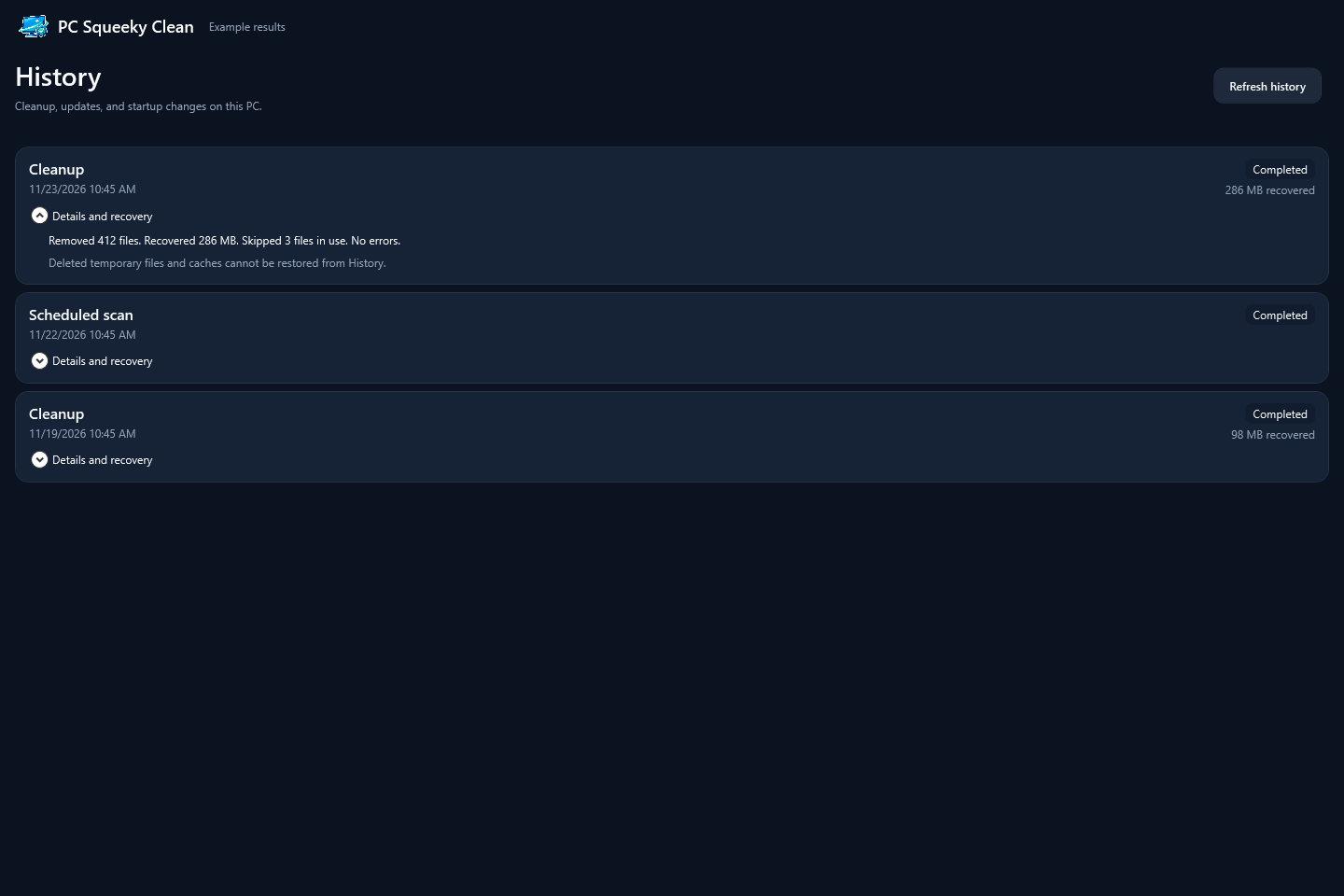
Open History to check the space recovered and see whether a run skipped files or encountered errors.
Choose a daily, weekly, or monthly schedule. Scheduled maintenance scans by default. You can separately opt in to automatic cleanup for approved categories.
Check live CPU, memory, disk, and network activity. Review programs that start with Windows and choose which ones to enable or disable.
Find supported app updates through Windows Package Manager and review driver packages offered by Windows Update. You choose what to install.
Use the Microsoft Store product link. The public release is pending, so the Store may not show an install option yet.
A scan estimates space used by supported cleanup categories, such as browser caches and temporary files. You can review the results before choosing to clean.
Routine cleanup works inside approved Windows and browser locations. It leaves Documents, Desktop, Pictures, and Downloads alone. The separate storage tool only acts on files you select and confirm.
Yes. Set a schedule in Settings. Scheduled maintenance scans by default, with a separate option to enable cleanup for approved categories.
History shows what happened. It cannot restore permanently deleted temporary files or caches. The storage tool moves selected files to the Windows Recycle Bin, where you can restore them while they’re still there.
PC Squeeky Clean has no registry cleaner or firmware updater. Its startup controls help you enable or disable individual startup entries.
The app is built for 64-bit Windows 10 and Windows 11. When available, the Store listing will show the requirements for the published package.
Start with the help guide, or email [email protected].
Follow the setup guide or check the Microsoft Store for availability.