
Help & support
PC Squeeky Clean for Windows
Looking for the app or checking availability? Start on the PC Squeeky Clean product page. See the FAQ for questions about cleanup, recovery, and system requirements.
Your first cleanup
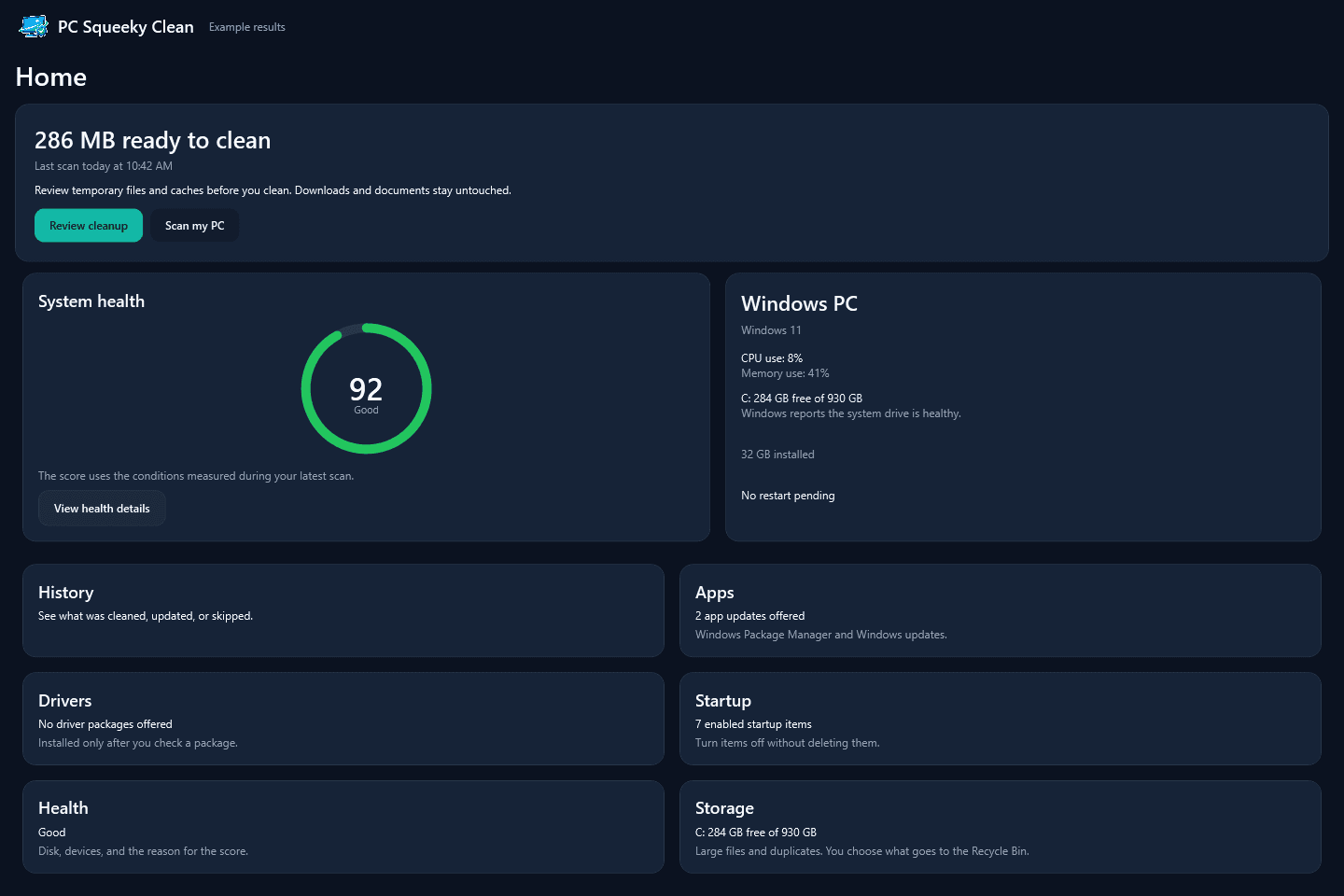
- On Home, select Scan my PC. A scan estimates what you could free up.
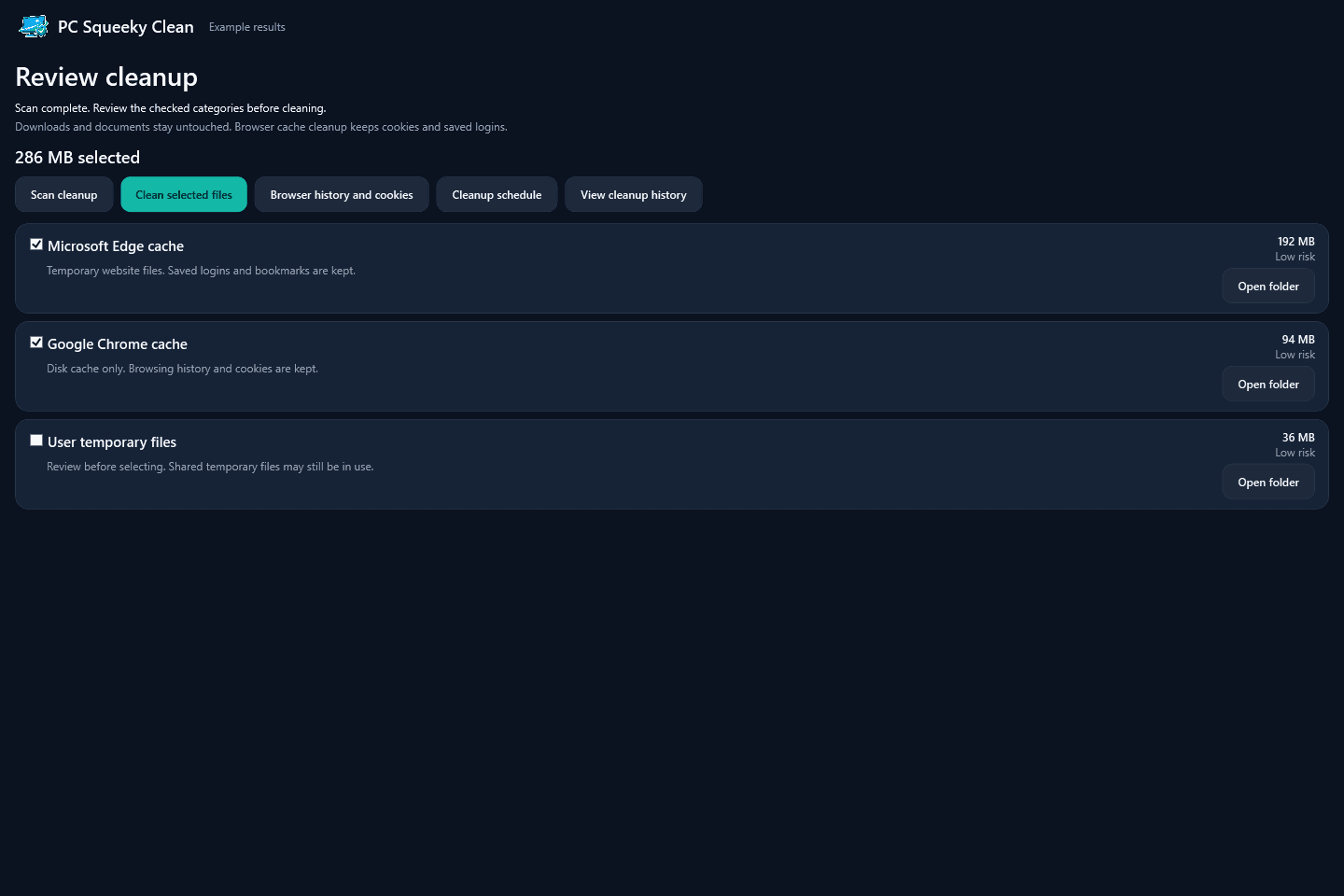
- Open Review cleanup and check each category you intend to remove. Back up anything you may need.
- Select Clean selected files. Open History to check results and skips.
Home after a scan
Review the selected cleanup
Check the cleanup result
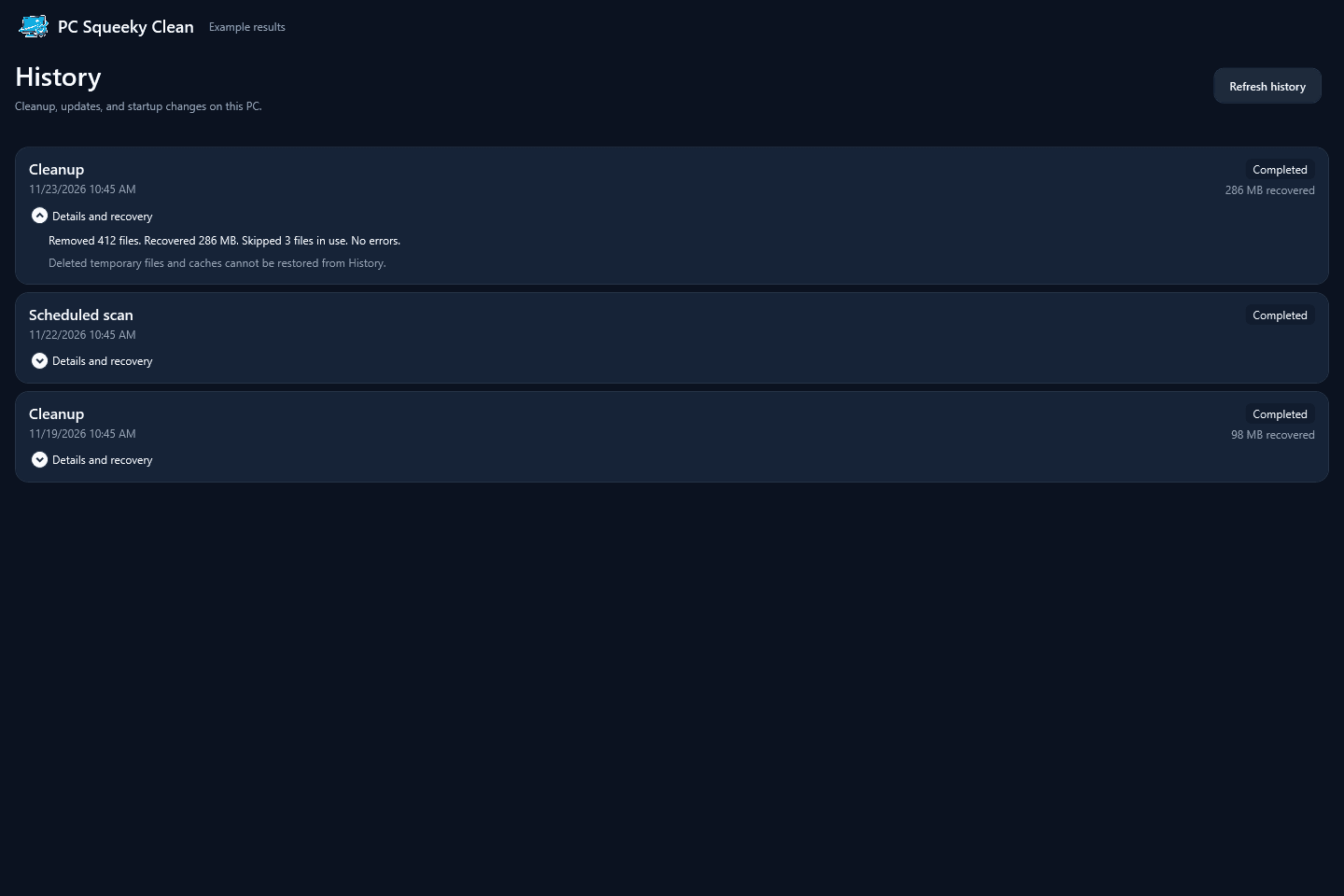
Files in use may be skipped. Cleanup History cannot restore deleted files.
Automatic maintenance
Open Settings, choose Automatic maintenance, then choose a frequency and save. Scheduled runs scan by default. Turn on scheduled cleanup separately for approved categories.
Report a problem
Open Help & support in the app and choose Report a problem. Review the template before copying it or opening an email draft. Describe what happened and include screenshots only after removing private information.